
Speechbox / Brand
Design Specs
The sizes and safe areas for your speaker kit cover and your quote card background. Send this page to your designer.
Start here
What to design
Two images and your logos. Neither image carries text or a logo: Speechbox places your logo, the speaker and the quote on top. Forward this page to whoever designs for you.
The kit cover image
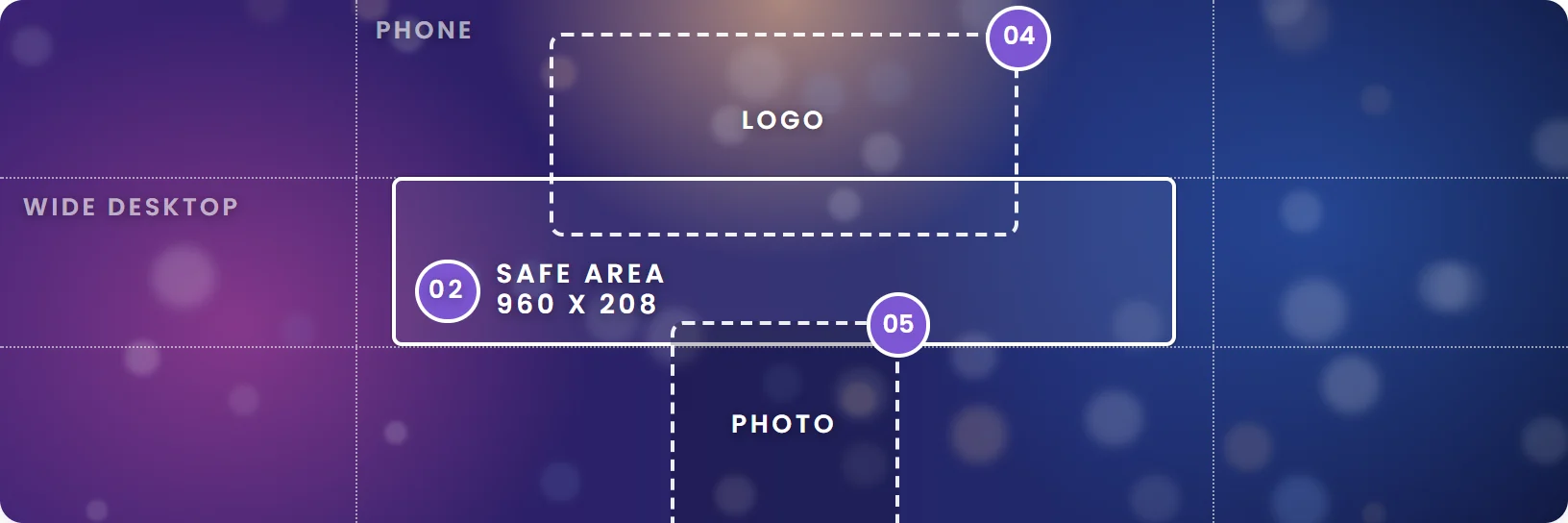
1920 x 640 px. Everything that matters goes in the central 960 x 208 px.
Part one has the grid and a template to download.
The quote background
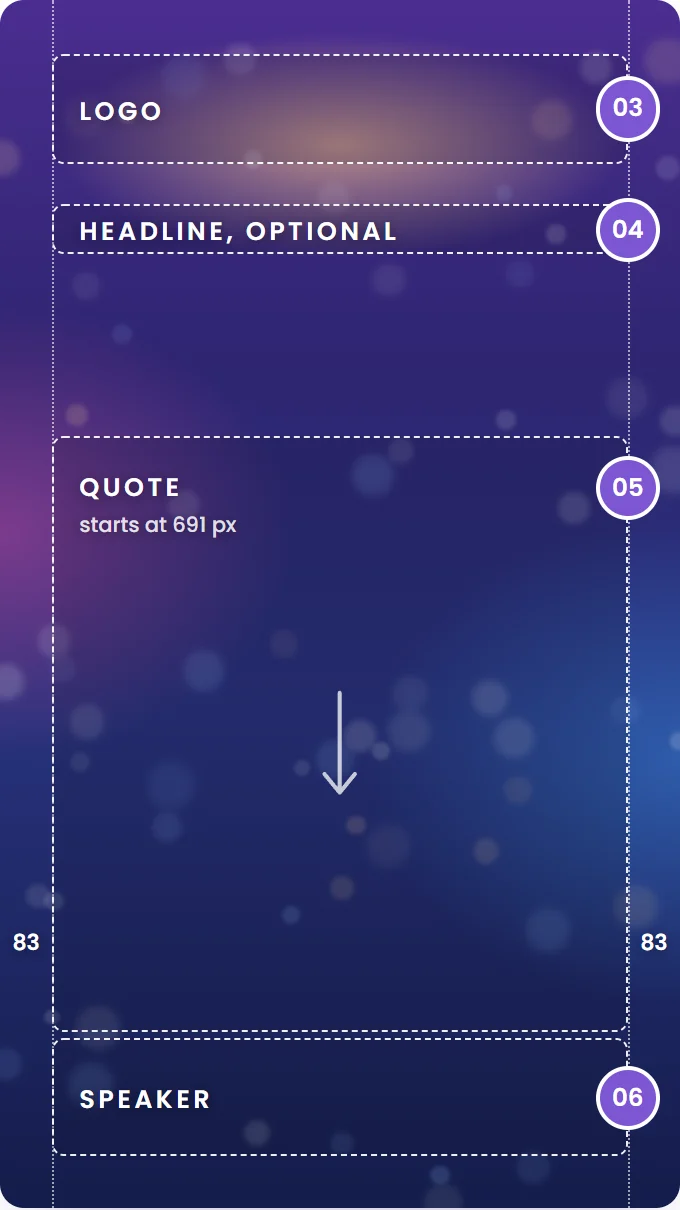
1080 x 1920 px. Keep 83 px clear on each side and the bottom strip calm.
Part two has the grid and a template to download.
Your logos
A main logo and a light version for dark backgrounds, trimmed, on a transparent background.
Part three explains why both.
At a glance
| File | Size | Format | Leave out |
|---|---|---|---|
| Kit cover image | 1920 x 640 px, 3:1 | JPEG, PNG or WebP, up to 5 MB | Leave out: Text, logos, busy detail at the top center and bottom center |
| Quote background | 1080 x 1920 px, 9:16 | JPEG, PNG or WebP, up to 5 MB | Leave out: Text, logos, anything in the 83 px side margins |
| Logos | Trimmed to the mark | SVG, or PNG on a transparent background, up to 5 MB | Leave out: Empty space around the mark |
The New conference form can generate both images from your website, logo and colors, and you approve the ones we may use. Part four shows the options.
Part one
The speaker kit cover image
The banner at the top of every public speaker kit page. The same image heads your video pages, speaker directory and agenda, and repeats at the foot of the kit page.
Your artwork1920 x 640 px
Size
1920 x 640 px, a 3:1 ratio. JPEG, PNG or WebP, up to 5 MB.
Safe area
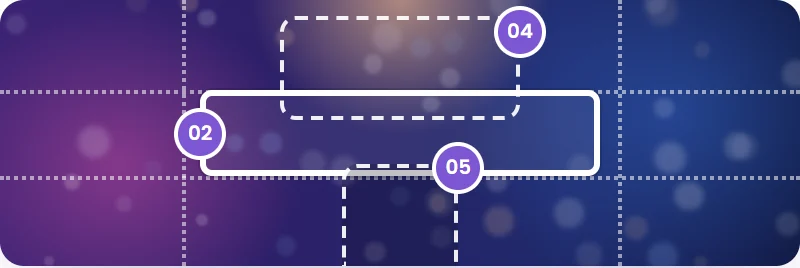
Keep everything that matters inside the central 960 x 208 px. That part stays visible on every page that shows the cover, on every screen from a phone to a 1920 px desktop.
No text in the image
The cover crops differently on every screen, so text gets cut. Your logo and company name are placed on top of it for you.
Top center
Your logo and company name sit here. Keep this area calm enough for a white logo to read.
Bottom center
The speaker photo overlaps the bottom edge, in a circle.
It fades into the page
The lower 65% of the banner blends into the kit page color, dark by default. Detail at the bottom disappears.
One image, every page
Speaker kits, video pages, the speaker directory, the agenda, and the repeat at the foot of the kit page.
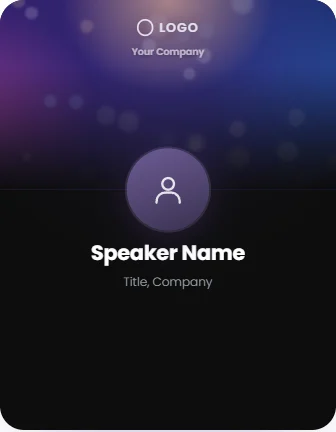
How it looks on a kit page
Desktop1440 px wide

Phone390 px
Worth knowing
- Every file is saved as a JPEG, 1920 px wide, without its color profile, so export in sRGB. Transparent areas turn black.
- A very smooth gradient can show steps. A light texture helps; keep it subtle, because a busy file is compressed harder.
- On screens wider than 1920 px the banner is enlarged and cropped a little tighter. Put the main element in the very middle, and avoid hairlines and small detail.
- Speechbox adds a soft glow in your brand color over the upper middle of the banner.
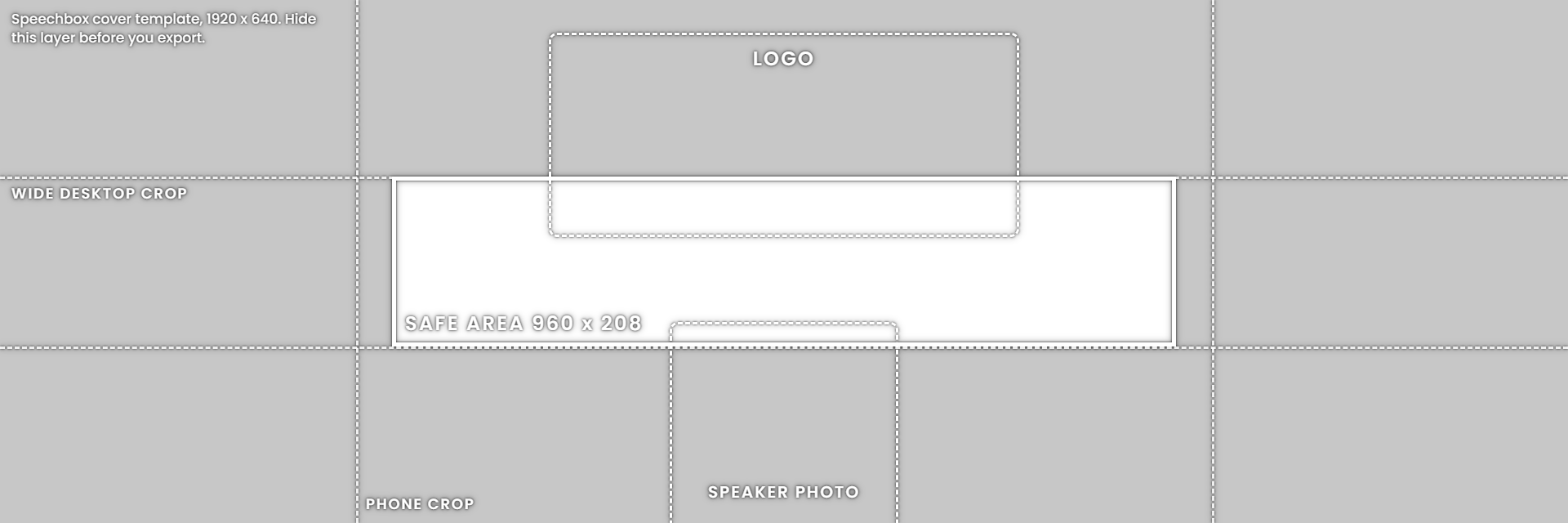
A transparent PNG, 1920 x 640. Put it on top of your artwork as a guide layer, and hide it before you export.
Part two
The quote card background
The image behind every quote card. Speechbox places your logo, an optional headline, the quote and the speaker on top, and exports each card at 1080 x 1920 px for stories.
Your artwork1080 x 1920 px
On the card, default settingsImage shows
Size
1080 x 1920 px, 9:16. JPEG, PNG or WebP, up to 5 MB. The image fills the card and crops from the center.
No text, no logo in the image
Speechbox adds your logo, the quote and the speaker name on top. Keep 83 px clear on both sides.
Logo
Top center, 86 to 260 px from the top. A wide logo can reach almost the full width there.
Headline, when used
A short line centered around 365 px from the top, for example the session or the stage name.
Quote
Starts 691 px from the top at the default settings and grows down with its length. A short quote leaves the lower half empty; a long one reaches the speaker row. Keep this area soft and low in detail.
Speaker
Photo and name in the bottom 270 px, on the left, in every language. Names can run long, so keep the whole bottom strip calm.
It renders darker
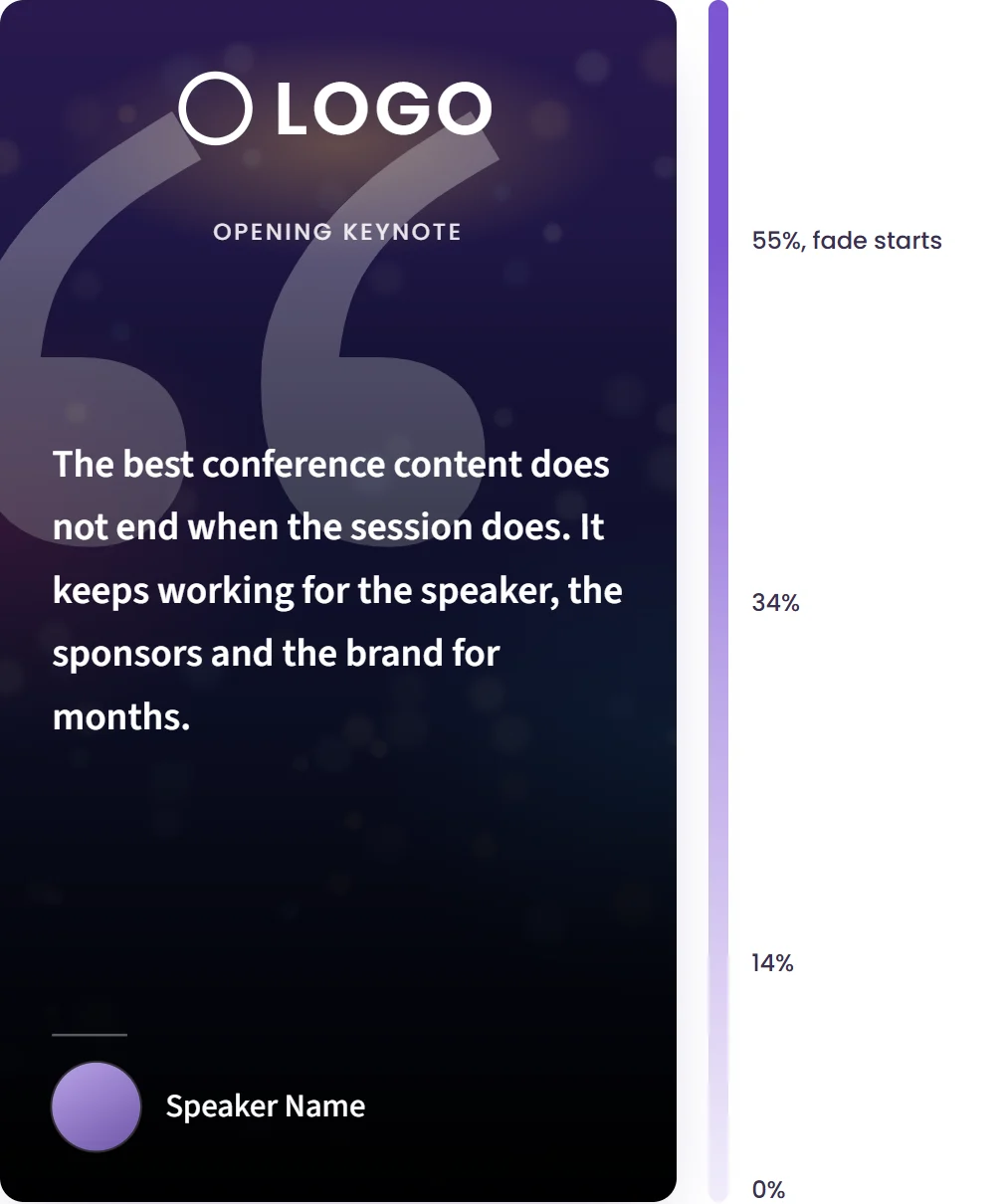
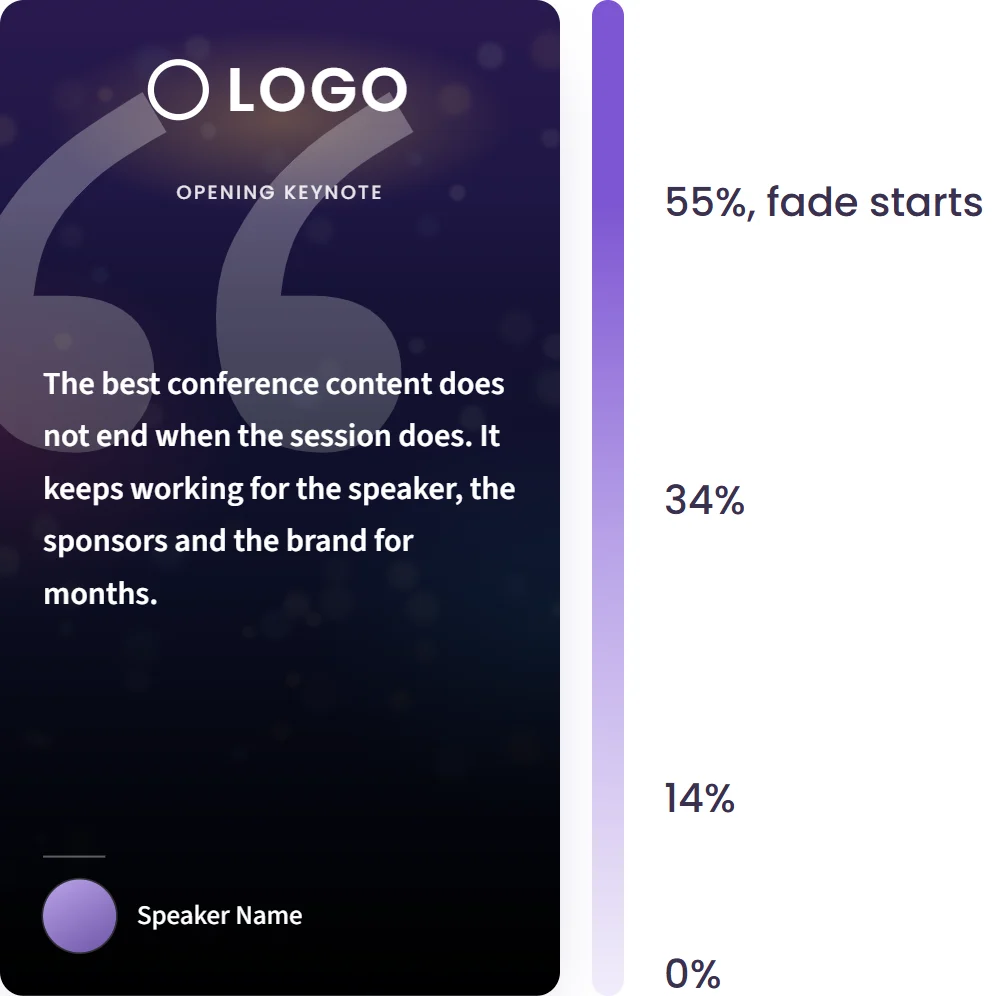
A 45% dark layer covers the image, and the lower 80% fades to black. Put faces and color in the top third.
Worth knowing
- A large quotation mark covers the upper left of the card, down to about 1000 px from the top, behind the text, in white at low opacity.
- Is your artwork already dark? Tell us, and we lower the dark layer on your cards. The layer, the fade and the logo position can all be set per card.
- Using an event photo? Blur it until no sponsor logo or sign can be read. The quote has to stay readable on top.
- Every file is saved as a JPEG, without its color profile, so export in sRGB. Transparent areas turn black.
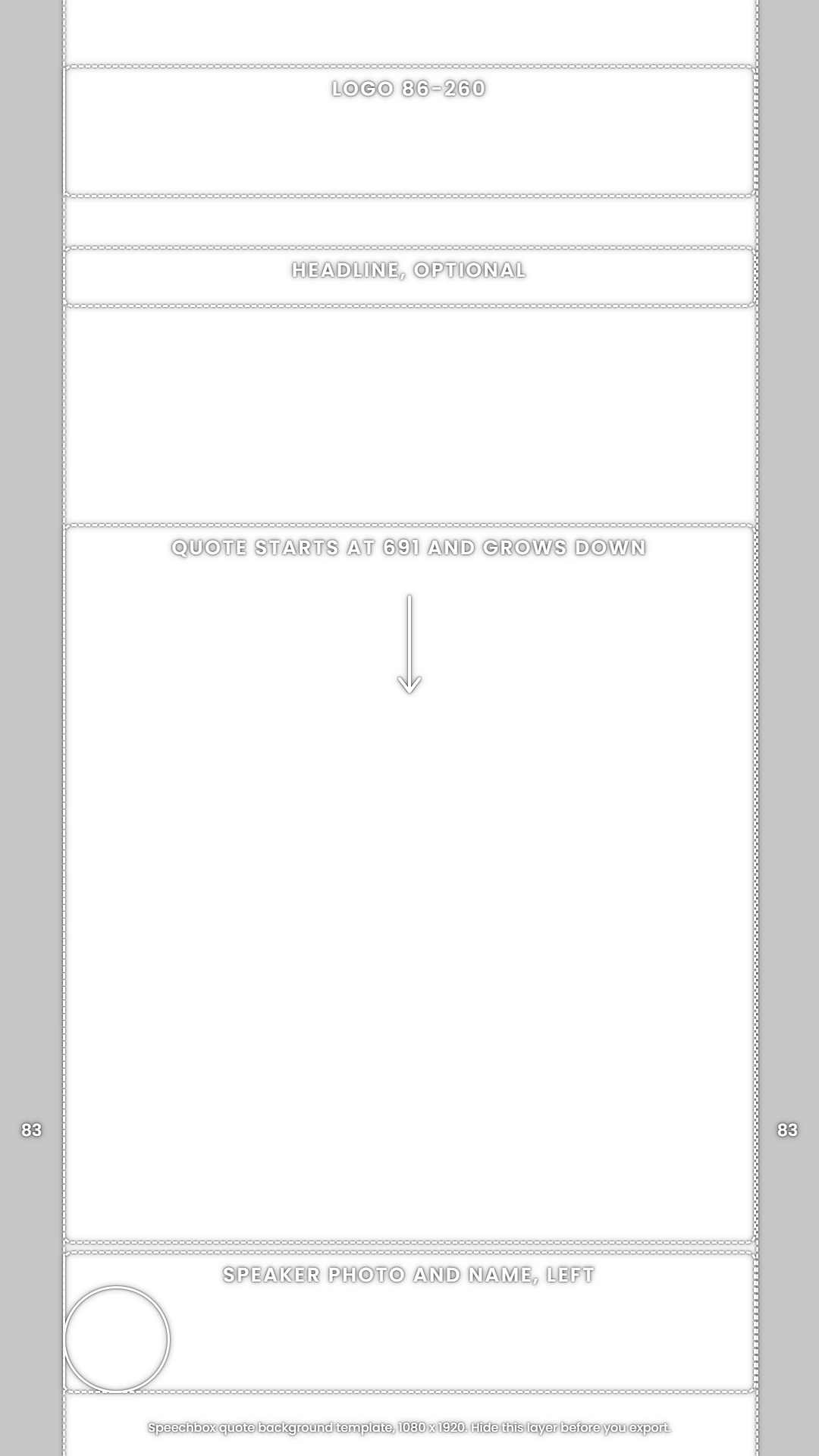
A transparent PNG, 1080 x 1920. Put it on top of your artwork as a guide layer, and hide it before you export.
Part three
Your logos
Your logo sits on the kit cover and on every quote card, almost always on a dark background.
A main logo
Your standard logo, in its usual colors.
A light version
White or light, for dark backgrounds. Speaker kits and clips mostly use it. Without one, we have to make it ourselves.
Trimmed and transparent
SVG, or PNG on a transparent background, cropped tight to the mark.
Why: the logo is placed in a box of fixed height, so empty space inside the file makes the visible logo smaller.
Not too wide
On a quote card the logo can be up to five times as wide as it is high; a wider wordmark is drawn smaller. On a kit page, at the default size, it fits a box of 180 x 44 px on desktop and 140 x 32 px on phones. A stacked version, with the symbol above the name, often reads better.
Files we take: PNG, JPEG, SVG or WebP, up to 5 MB each.
Part four
How to send the files
Everything goes through the New conference form in the Speechbox portal. For the two images, the form offers three options.
Generate from our brand
Designs appear in the form right away, made from your website, logo and colors. You approve the ones we may use.
Only approved designs are used on your quote cards and kit covers.
We have a file
Upload the images straight into the form.
Our designer will upload
Enter your designer's email and press "Send instructions". The designer gets an email with these sizes and a private upload link: no account needed, open for 30 days.
Uploading again replaces the earlier file.
In the "Main logo" and "Light logo" fields. The designer's link takes the two images only, so send the logo files to whoever sent you this page.
We place the files on your kit pages and quote cards. Sending session recordings as well? That is covered in Sending Session Files.
Part five
Before you send
A last look at each file.
The kit cover image
- 1920 x 640 px.
- Everything that matters inside the central 960 x 208 px.
- No text and no logo.
- Calm at the top center and the bottom center.
- No transparency, no hairlines.
The quote background
- 1080 x 1920 px.
- No text and no logo.
- 83 px clear on both sides.
- Faces and color in the top third, and a calm bottom strip.
The logos
- A main logo and a light version.
- SVG, or PNG on a transparent background, trimmed to the mark.
Every file up to 5 MB. The full detail for each one is in part one, part two and part three.